Chart Settings - Wheel
The Chart Settings window consists of several thematic tabs of options for calculating and displaying horoscope charts. The Wheel tab contains settings for customizing the chart wheel.
The Chart Settings - Wheel tab is opened by first:
- selecting "Settings" | "Chart Settings" from the main menu, or
- clicking the
 "Options" Toolbar button and selecting "Chart Settings..." from the menu, or
- right-clicking in the Chart tableau and selecting "Chart Settings..." from the popup menu, or
- double-clicking in an empty region of the Chart tableau.
Then by clicking the  "Wheel" button at the top of the window,
or typing the 'W' key.
"Wheel" button at the top of the window,
or typing the 'W' key.
The Wheel page have several tabs:
Wheel
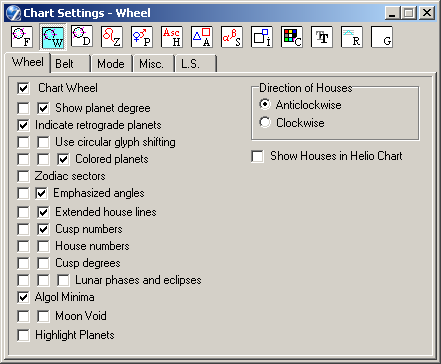
To display a horoscope wheel on the Chart tableau the Chart Wheel panel checkbox must be checked ON.
- Show planet degree
Displays the planet's longitude within a sign as an ordinal number (i.e. 1st, 2nd, ... 30th degree) next to the planet's glyph on the chart wheel. The font size for displaying the planet degree is set on the Chart Settings - Font tab. (Planet glyph info tooltips continue to display longitudes in full).
The rightmost checkbox allows display both Degrees and Minutes near planet glyphs. - Indicate retrograde planets
Posts the symbol R next to glyphs on the wheel of planets which are in retrograde motion. - Use circular glyph shifting
When the right box is checked, planet glyphs are displayed as if on a ring, and displaced laterally to avoid collisions. If unchecked, collisions of glyphs are avoided by moving glyphs radially away from the center of the wheel as necessary.
"Radial shifting only" (left box) prevents circular glyph shifting, at the expense of glyphs of different chart rings in complex charts possibly overlapping. - Colored planets
When checked, displays the planets using the colors individually set for them on the Chart Settings - Planets tab. When unchecked, displays the planets uniformly in the color specified on the Chart Settings - Color tab for Inner ring planets and for Outer ring planets.
The "Colored planets in Tables" (left box) option allows to paint planet's glyphs in tables with individual color.
The "Paint planet by nearest aspect's color" (right box) option paints planet's glyphs in a chart wheel by color of existing coinside aspect with minimal orb. - Zodiac sectors
When checked, sectors the chart wheel according to the zodiac signs. The color of the sectoring lines is set with the "Planet rings borders" option on the Chart Settings - Color tab. - Emphasized angles
When the right box is checked, cusps of angular houses are highlighted using bold lines.
The "Show angles only" (left box) option removes intermediate house cusp lines from the wheel, and displays only the cusp lines of the angular houses. - Extended house lines
When the right box is checked, the lines of house cusps are extended beyond the zodiac ring. The length of the extension is controlled by the "Outer ring of wheel" slider on the Chart Settings - Size tab.
The "Additional elements" (left box) option decorates the extended cusps of the Ascendant and MC to enhance their visibility. - Cusp numbers
Enumerates the house cusps (in Roman numerals) on the wheel: left checkbox for the outer ring houses of dual charts, right checkbox for single charts and the inner ring houses of dual charts. - House numbers
Enumerates the houses on the wheel (numbers are centered in the house sector): left checkbox for the outer ring houses of dual charts, right checkbox for single charts and the inner ring houses of dual charts. - Cusp degrees
If the "Cusp numbers" option has been selected (see above option), this setting displays the longitude of the cusp (as an ordinal degree) next to the cusp number. - Lunar phases and eclipses
The three checkboxes control the display of information about the last and next New and Full moons (and eclipses, if relevant) on the tableau.
The right box displays glyphs for events proximate in time to the event data on the chart wheel. These glyphs are mouse-sensitive - pause the mouse over them for tooltip info, i.e. date, longitude, etc.
If the left box is checked, only glyphs for the prenatal syzygy are displayed on the wheel.
When the middle box is checked, eclipse details are displayed as text at bottom left of the tableau. - Algol Minina
Control to display the periods of Algol star brightness minima.
Algol, the eye of Medusa Gorgona (beta Percei) is a variable star with a period of 3 days, the periods of brighness minima (+- 3.5 hours from extremum) considers unfavourable. Displays the times of previouse and next minima of Algol. - Moon Void
Displays when, and for how long, the Moon is next 'void-of-course', i.e. does not perfect an aspect with any planet before its ingress into the following zodiac sign. The right box when checked displays the arc traveled by the Moon during this period by highlighting a segment of the inner boundary ring of the chart wheel. (This segment has an info tooltip).
"Moon Void, Text" (left box) setting displays the time and duration of the void-of-course period at bottom left of the Chart tableau. If the Moon is void-of-course for the current (core) event data, the text is bold.
When this option is selected, the Mundane Aspects of the Moon calendar (see Astrological Tables) for the month of the event data is calculated automatically and saved in the [ZET]\MoonAsp folder, as it is used to calculate the void-of-course period. (See below for setting up the procedure).
NOTE. If you change the type of Zodiac, or aspects' orbs, or select a different orb table, you should delete the contents of the MoonAsp folder before recalculating the calendars. - Moon Void Calculation Setup
Clicking this button displays a dialog for inputting the dates (years) between which the Mundane Aspects of the Moon calendar will be automatically calculated if the event data falls in this range. The Files button opens a Moon Mundane Aspects Files selector dialog - you can use this to delete, etc calendar files. If the chart date (core data) falls outside this range, the calendar is not calculated, and void-of-course information is not displayed. - Hightlight Planets
When this option is selected, then moving a mouse over planet glyphs of coordinate table leads to hightlight corresponding planet in a chart wheel. - Direction of Houses
This panel allows you to select on which side of the chart wheel the 'East Point' is located, and the direction in which houses are numbered round the wheel:- Anticlockwise - locates the East Point of the wheel (normally the Ascendant) conventionally at the left of the wheel, and houses are numbered in an anti-clockwise direction.
- Clockwise - locates the East Point of the wheel on the right (as used by some astrologers), and houses are numbered from this point in a clockwise direction.
- Show Houses in Helio Chart
Use it if you exactly know you need it.
Belt
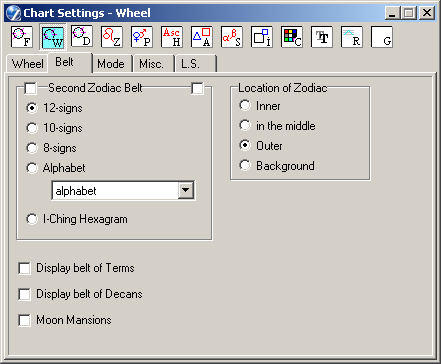
- Second Zodiac Belt
Checkmark the box to display a second belt of zodiac signs in the chart wheel in addition to the main zodiac belt, e.g. Sidereal in addition to Tropical, or Tropical in addition to Sidereal. Also 10- or 8-signs Zodiac, tropical or sidereal.
The position of a planet in the second zodiac is displayed in parentheses in the chart wheel info tooltip, and on the status line, whenever the mouse pointer is paused over the planet glyph.- 12-signs Zodiac displays sidereal zodiac ring, if checked the "Sidereal" option (the box right of "Second Zodiac..." caption).
- 10-signs Zodiac contains: Taurus, Gemini, Cancer, Leo, Virgo, Scorpio, Sagittarius, Capricorn, Aquarius, Pisces.
- 8-signs Zodiac contains: Aries, Taurus, Cancer, Leo, Libra, Scorpio, Capricorn, Aquarius.
- For the "Alphabet" belt used [ZET]\LANGUAGE\English\Alphabet.txt file. If you wish you can modify it to display any set of characters. Also you can specify an alphabet as set of images, e.g. Hebrew letters, see [ZET]\LANGUAGE\English\AlphabetIvrit.txt file and image files in [ZET]\LANGUAGE\English\AL\ folder.
- I-Ching Hexagram displays a ring of hexagrams begining from ASC (or
Aries in case of Cosmogram). The first hexagram depends of rulers of 1..6 houses
(or rulers of first 6 signs: Aries etc.)
- Location of Zodiac
It's possible to choose a Zodiac ring location on a chart:- Inner,
- in the middle,
- Outer,
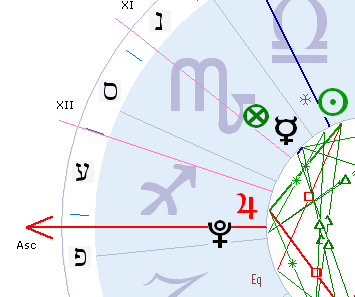
- as Background image, used with Colored Tableau Backdrop and big size Zodiac signs of True Type font:
- Display belt of Terms - displays the sequence of Terms as a belt on
the chart wheel. The system of Terms selected on a Data, Systems tab.
- Display belt of Decans - displays the sequence of Decans as a belt on
the chart wheel. The system of Decans selected on a Data, Systems tab.
- Moon Mansions
When checked ON, displays a ring of Mansions of the Moon on the chart wheel. See also Moon Mansions (Chart Settings, Data tab, System page).
Mode
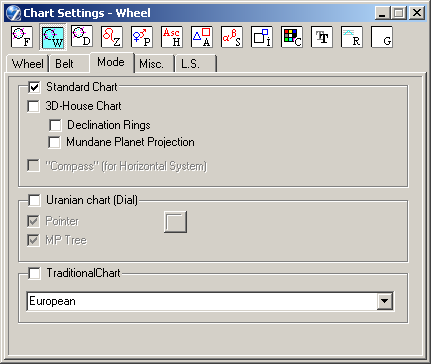
Standard Chart
- 3D-House Chart - right, with accounting of latitude, displying of house cusps
of Placidus (and other projection house systems) and planets on the chart wheel.
- Declination Rings - additional elements of "3D-House Chart", tree ciecled of latitude: -90, 0, +90.
- Mundane Planet Projection - the lines of mundane projection displays for planets for which the "Mundane projection" option is setted on the Planets page.
When the Horizontal system of coordinates is used (see Chart Settings - Zodiac tab), selecting this option converts the chart wheel graphic into a Local Space chart:
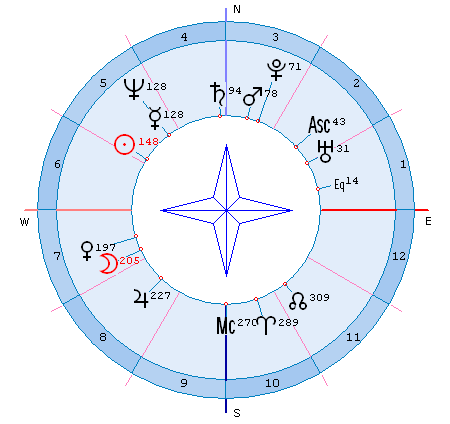
See also Local Space Astrology.
The options on this panel are used in Uranian astrology:
- Dial
- when checked, substitutes the Uranian 90° harmonic dial for the traditional horoscope wheel.
- Pointer - when checked, displays the special pointer (red arrow) for selecting
and viewing midpoint pictures. The pointer is rotated by clicking and dragging with the
mouse anywhere along its length, or by using the Pointer's Tool (see below).
- MP Tree - when the pointer is enabled, this option displays the midpoints trees
found by the pointer in its current orientation as a list in the center of the dial.
The list can be scrolled using the Up and Down arrow cursor keys
or with the mouse by clicking the black arrows at top and bottom right in the list.
- Pointer's Tool button - click to open the Pointer control panel. The panel is also opened using the Alt+U hot-key.
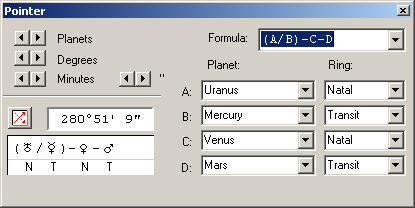
- Planets buttons advance the pointer clockwise and anticlockwise to the next planet of the currently aspecting ring. The aspecting ring is selected using the Direction of Aspects (Alt+A) window.
- Degrees buttons move the pointer in increments of one degree.
- Minutes buttons move the pointer by one arc-minute.
- "Move Pointer" button is a toggle which, when clicked down, results in
the pointer being automatically positioned according to a formula.
Formulae are selected from the list at the bottom of the dialog.
The value of the formula, and the position of the pointer, is given at right of the button.
Formulae are based on the schema of Uranian astrology, where 'A'...'D' represents any planet:
- A+B - sum
- A-B - difference
- A/B - half-sum
- A+B-C - sensitive point
- (A+B)/(C/D) - midpoint of sum and half-sum
- (A/B)/(C/D) - double half-sum.
The letters under the planet glyphs in the formula selection box refer to the chart ring type in which the planet is located, the innermost ring is N (natal) second e.g. T (transit) etc. If a single chart is under consideration, ring typs are not shown.
To use the schema, you must instantiate each parameter by selecting a planet for it. To select a planet:
- Click the mouse on a 'A'...'D' place-holder (or a planet glyph, if the formula was previously instantiated). ZET's Status bar displays the prompt: "Select a planet on the wheel".
- Indicate the planet from the chart ring you require by clicking its glyph with the mouse. The selected planet is substituted into the formula. If a chart is not single, the planet's ring number is also displayed.
- Repeat the above steps for all parameters of the formulae.
Formulae are recalculated dynamically when the event data changes.
Traditional chart
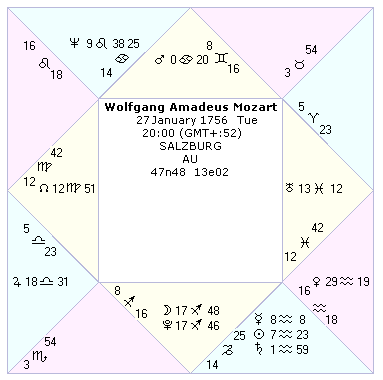
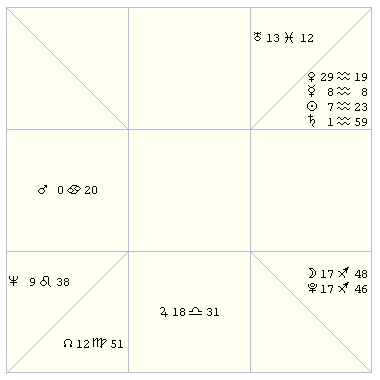
There are several types of traditional (square) charts:
- European - houses displyed with triangles, 1st house left, next - anticlock wize,
- South Indian Regular - zodiac signs (not at home) are represented as rectangles, following clockwise,
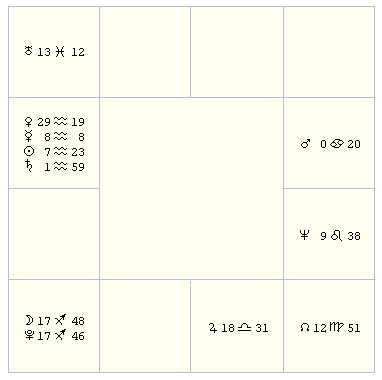
- South Indian Irregular - anti-hour - the same, but the signs are arranged counterclockwise,
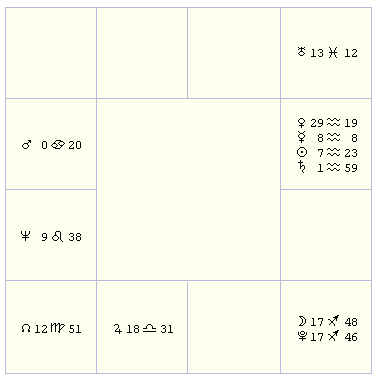
- North Indian (diamond chart) - the first house is drawn at the top of the fourth - on the left, the seventh - at the bottom of the tenth - the right,
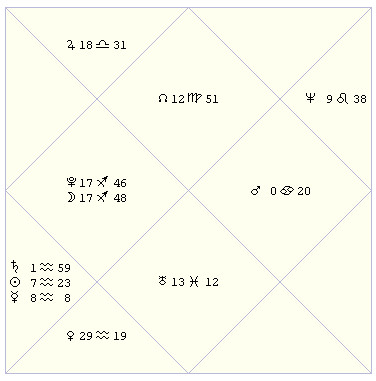
- East Indian (Sun chart) - signs anticlock wize, 1st top, without frame,
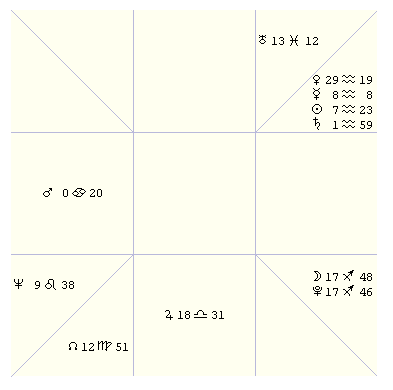
- East Indian with fraame - signs anticlock wize, 1st top, in frame.
Miscellanea
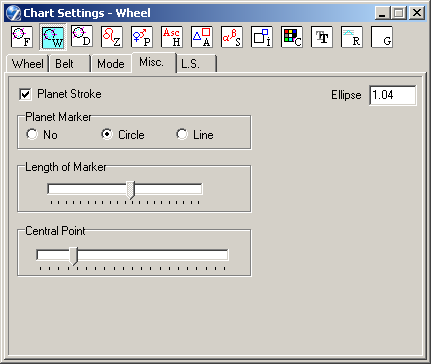
-
This option displays lines, which connects planet's glyph with appropriate
planet's marker at a chart.
-
These options allow the use of index marks on the inside of the
planet ring(s) of the chart wheel to indicate the exact position of planets. This may be
found useful with dual/complex charts where one of the
Use circular glyph shifting options has been set (see Wheel tab).
The options are:
- No index marks,
- Circle index marks,
- Line index marks.
The Length of Marker slider allows you to adjust the length of the marker, if you have selected the "Line" option above. The colors of the index marks can be set individually for the core and background planet data sets on the Color tab.
-
In a center of a chart draws a circle with defined size, e.g.
size 0 - absence of a circle, size 1 - a point. The colors of ring and it's contour
specified at "Colors" page.
-
If not standard monitor's ratio, then sometime a ring of chart looks as ellipse.
To avoid it you can set some ellipticity ratio. You can find it experimentally,
e.g. for my second monitor it need ratio 1.04.
Local Space
This function is not availabel in Lite version.
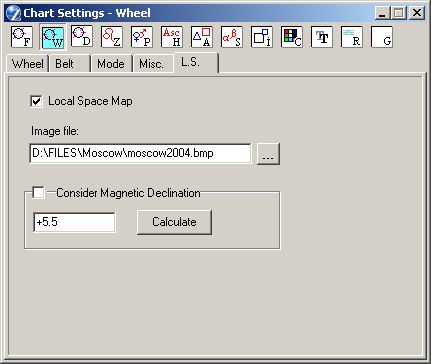
The "Local Space Map" function as a variant of the Local Space Astrology for nearest surroundings, e.g. apartment, city, and so on. The function bases at the image of an apartment's draft (or city map). See Local Space Map of Astrocartography chapter.
The "Local Space Map" flag switches on displaying of the appropriate map.
In the "Image file" field it need to specify the path to the image-file of chart.
The "Consider Magnetic Declination" option should checked on if you use the magnetic compass for orientation.
The compass points in the directions of the horizontal component of the magnetic field where the compass is located, and not to any single point. Knowing the magnetic declination angle between true north and the horizontal trace of the magnetic field for your location allows you to correct your compass for the magnetic field in your area. A mile or two away the magnetic declination may be considerably different, requiring a different correction.
To get a value of magnetic declination click the "Calculate" button and follow NGDC on-line magnetic declination calculator where you can enter your location (or zip code for the USA). Remember: east declination is positive, west negative.