Update ZET via Internet
The Update Wizard can be used for easy updating of ZET via the Internet. The Wizard recognizes if there are updates notified on the ZET Web site that have not yet been installed on your computer, and displays the dialog for downloading and installing them.
1)To invoke the Wizard click the  "Help"
Toolbar button or select "Help" from the main menu, then select the
"Help"
Toolbar button or select "Help" from the main menu, then select the
 "Update ZET..." menu item.
The following window is displayed:
"Update ZET..." menu item.
The following window is displayed:
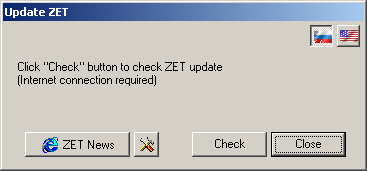
At top right there are two buttons for language selection -
 Russian or
 English.
Different updates are produced for different interface languages,
e.g. User Guide changes. The Wizard automatically recognises what language your computer is
using, but you can set it by clicking these buttons.
English.
Different updates are produced for different interface languages,
e.g. User Guide changes. The Wizard automatically recognises what language your computer is
using, but you can set it by clicking these buttons.
The  "ZET News" button opens
the News page on the ZET Web site. This describes the latest updates,
and other relevant information, e.g.
new releases of additional components for ZET, which are not mandatory
and not managed by the Update Wizard.
"ZET News" button opens
the News page on the ZET Web site. This describes the latest updates,
and other relevant information, e.g.
new releases of additional components for ZET, which are not mandatory
and not managed by the Update Wizard.
The  "Settings" button opens
a dialog where you can enter proxy server settings. If you not using a proxy, the
parameters should be empty.
"Settings" button opens
a dialog where you can enter proxy server settings. If you not using a proxy, the
parameters should be empty.
Ensure an Internet connection is present, and click the "Check" button. ZET will check if new updates are available. After a brief pause, the following window is displayed:
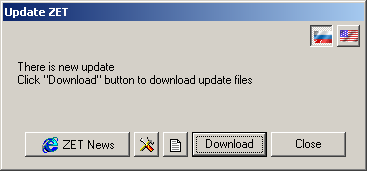
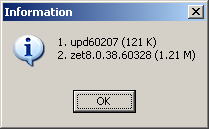
To view a list of the available updates and their file sizes, click
the  "Size of files" button.
The following message appears if there updates:
"Size of files" button.
The following message appears if there updates:
If there is no new updates, the Wizard will tell you.
3)To proceed with updating ZET right away, click the "Download" button. The transfer of the update files to your computer is accompanied by the following status dialog:
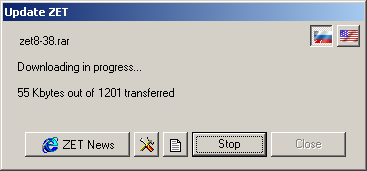
To abort the download procedure click the "Stop" button. You can still update ZET at any time later.
4)When downloading has completed, auxiliary files are installed automatically. However, it is not possible to update the ZET 8 executable (the file zet.exe) while ZET is running. Updating will be completed after you exit ZET (the special utility zetupd.exe is used).
Will appears the confirmation dialog: "The update will completed after you restart ZET. Do it now?". If you click "Yes" button in the dialog's window, then the program will closed automatically, updating will be completed, and the program will run again automatically, just updated. If you click "No" button (e.g. you want to save your work), then will closed only this dialog.
Click "Close" to dismiss the Update Wizard's window.
5)After you close ZET, any remaining updating is completed automatically.
When you have restarted ZET, open the About window and check the version number to confirm that the update installed successfully.
If auto-updating doesn't workIf the auto-update facility fails to work for any reason, you can download the update files from the ZET Web page whose URL was supplied when you registered the program, and install them manually.
Manual installation of update files requires that they are unpacked using WinRAR software, or with the ZET UnRAR utility available from the Downloads page of the ZET Web site (Additional Files section). Update files are distributed in archived .RAR type format.